Manage your ticket template with akaAT custom fields
1. Key words
1.1. Description
Tickets in akaAT are made up of fields that store various pieces of information. Every work ticket, test ticket comes with default system fields; like name, description or some fixed configurations but you’ll most likely need to add more fields to collect information that is very specific to your organization or your project.
Custom field function is one of two functions in the Custom Process section in both Project Setting and Organization setting. In The default processes of all projects are processes of Organization and the user (Project Admin role) can edit/customize that default process.
Note:
-
When creating the new Project, "Field Setting" of this project will be taken from current Setting in Organization Setting.
-
When Project admin edits Field Setting in current Project, this setting only be effective in current project.
-
When new fields are added in Organization Setting, it won't affect the current project.
-
When the Project Admin deletes a Field created in the Organization, all projects belonging to the tenant will be affected.
1.2. Permission
For all the following steps, you must be logged in as a user with the Organization admin (to do in Organization Setting) and logged in as a user with the Project admin (to do in Project Setting).
1.3. System field
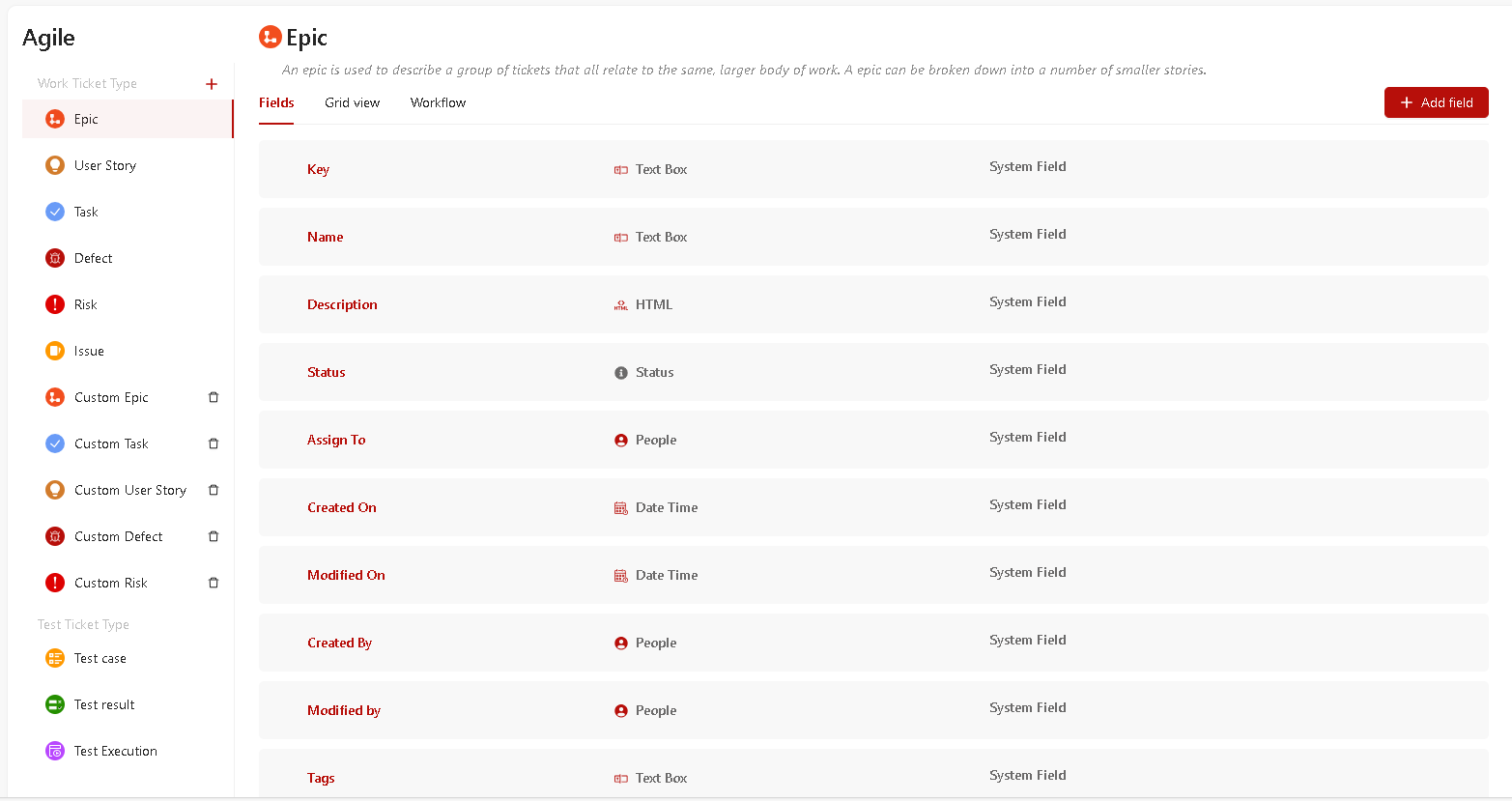
akaAT System field are designed to collect and carry the information necessary to build a work ticket/test ticket. Most of the system fields are locked for deleting and editing. Organization admin can modify the description and some configurations of system fields.
Here's an example of the system field details:
2. Adding a new custom field
You can add a custom field to collect information that isn’t available in the default system fields
-
Go to Organization setting > Process > Fields
-
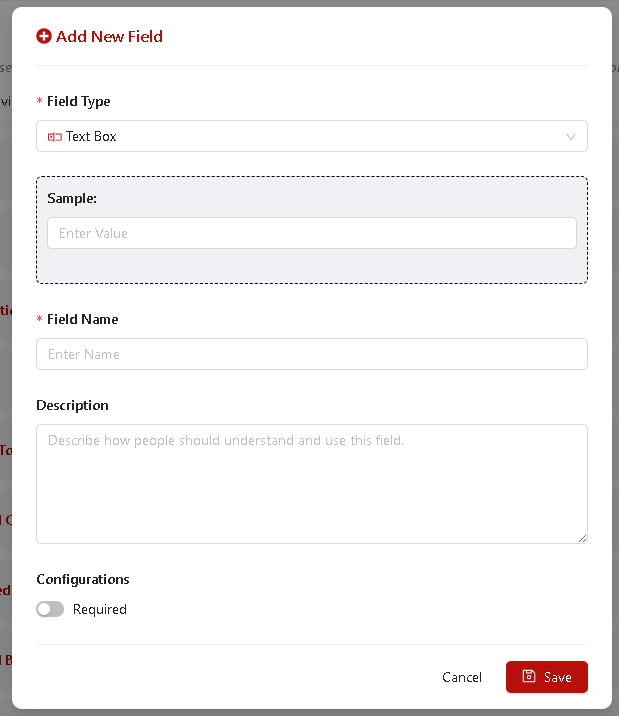
Click on Add Field button
-
Select field type and fill the details. Then click on Save button
3. Editing a field
3.1. Editing a system field
Organization Admin can modify the description and some configurations of system fields.
- Go to Organization setting/Project setting > Process > Fields
- Locate a system field that you want to edit and click on it
- In the Edit field, edit and fill in the allowed fields.
3.2. Editing a custom field
- Go to Organization setting/Project setting > Process > Fields
- Locate a custom field that you want to edit and click on it
- Fill in the details and click on Save button.
3.3. Deleting a custom field
System field cannot be deleted
Once deleted permanently, this field cannot be recovered.
- Go to Organization setting/Project Setting > Process > Fields
- Locate a custom field that you want to delete
- Click on Delete button.